
KISHORE KUMAR
I'm CISO certified
Professional Summary
Dynamic and results-driven IT Leader and CISO with over 28 years of progressive experience in enterprise IT infrastructure, application development, and cybersecurity management. Proven ability to design and implement secure, scalable IT systems that align with organizational goals. Expert in leading ISO 27001:2013 and ITSM initiatives, managing full-cycle IT projects, and overseeing disaster recovery and business continuity strategies. Adept at translating complex technical challenges into strategic opportunities, fostering a culture of security awareness, and building high-performing, cross-functional teams. Recognized with multiple industry awards for cybersecurity leadership and innovation.
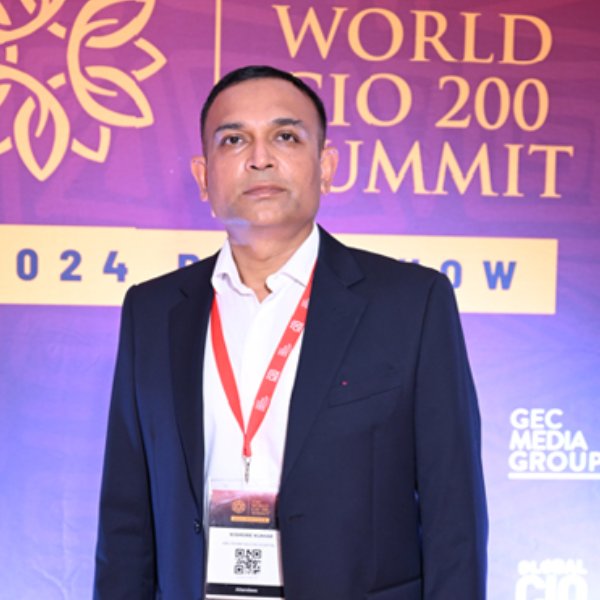
IT Team Lead / Acting CISO
Accomplished IT leader with over 28 years of experience in application development, IT infrastructure, and information security. Proven expertise in cybersecurity strategy, project management, cloud migration, and ISO 27001 implementation.
- Birthday: 1 May 1985
- Phone: (971) 50-8220870
- City: Abu Dhabi, UAE
- Adept at translating complex technical challenges into business opportunities, fostering collaboration between IT and executive leadership to enhance organizational resilience
- Strong background in Programming, Database Design, Database Administration, RDBMS & ORDBMS
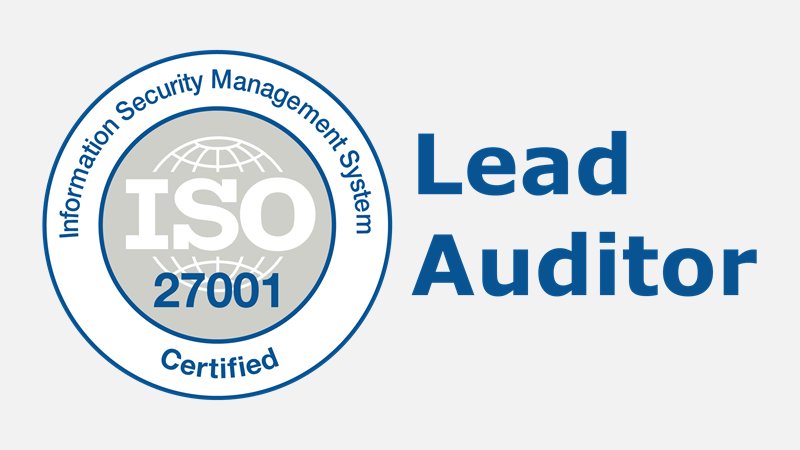
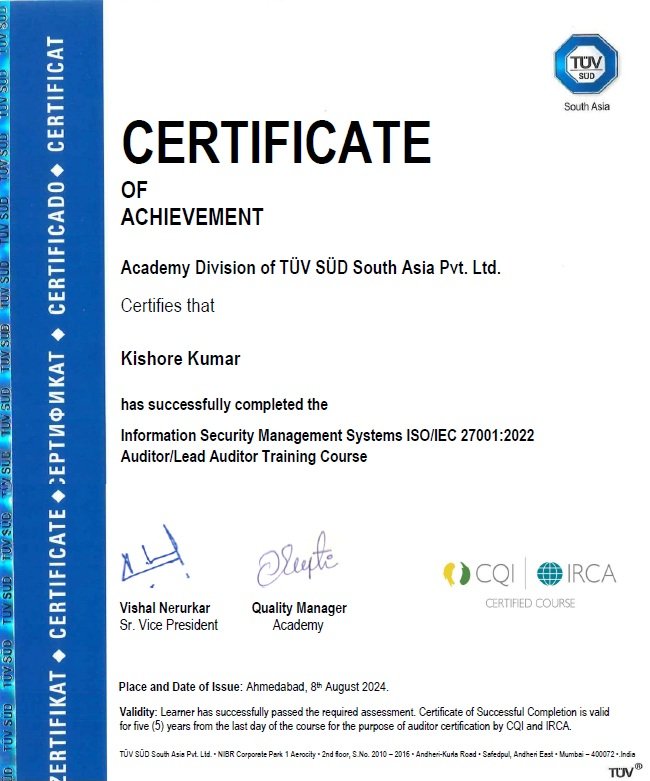
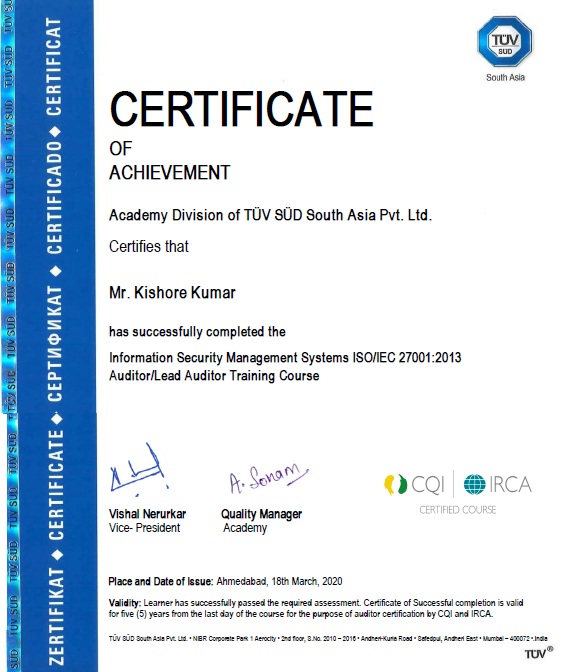
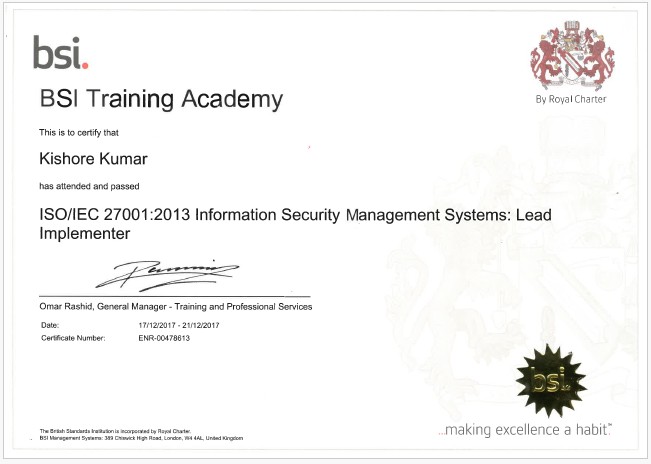
- ISMS Manager and & Lead Implementer in establishing Information Security Management System (ISMS) and for achieving ISO 27001:2013
- Professional: IT Team Lead / Acting CISO
- Degree: MBA in Information Systems
- Email: ljhakishore@gmail.com
- A competent professional with over 28 years of experience in IT Applications Development, Deployment, Analysis, Management, Information Security, and IT Infrastructure setup.
- Skilled in leading cross-functional teams to achieve IT security excellence, with a focus on talent development and operational efficiency.
- Extensive experience in implementing & managing enterprise-wide robust security framework aligned with business objective, risk assessments, and compliance regulations to safeguard information assets.
Resume
Accomplished IT leader with over 28 years of experience in application development, IT infrastructure, and information security. Proven expertise in cybersecurity strategy, project management, cloud migration, and ISO 27001 implementation. Recognized for aligning security initiatives with business objectives and mentoring cross-functional teams to deliver high-impact solutions.
Professional Experience
ADFH / Environment Agency – Abu Dhabi (EAD)
IT Team Lead / Acting CISO
Feb 2020 – Present
- Led ISO 27001:2013 and ISO 20000-1 certification projects
- Migrated Microsoft Exchange to Office 365 E5
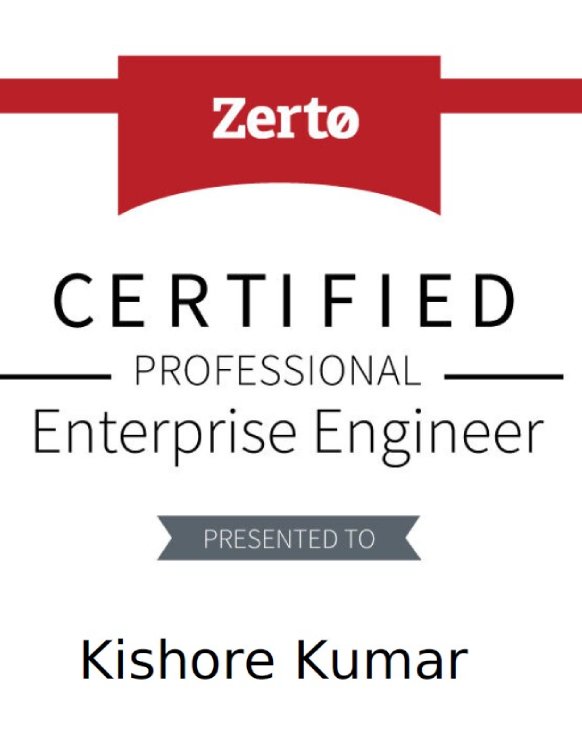
- Implemented Zerto DR, PureStorage, Forcepoint DLP, WALLIX PAM
- Oversaw risk assessments, gap analysis, and cloud adoption strategies
- Delivered Information Security Awareness across departments
ADFH / Environment Agency – Abu Dhabi (EAD)
Sr. IT Application Engineer / Acting CISO
Jan 2008 – Jan 2020
- Developed Hospital & Patient Information Management Systems
- Established virtualized data center & DR site
- Designed and deployed clustered MS SQL & Exchange environments
- Implemented ISA Server, Forcepoint, IronPort appliances
- Conducted user training, support, and project leadership
Injazat Data Systems – Abu Dhabi, UAE
Information Analyst
Mar 2005 – Jun 2008
- Developed and supported environmental and cultural heritage systems
- Liaised with clients for technical requirement gathering and system analysis
ERWDA / Environment Research Agency – Abu Dhabi
Application Developer
Jul 2003 – Mar 2005
- Developed diagnostic and wildlife systems using VB & SQL
- Managed image/video processing systems for environmental research
Software Technology Group Middle East / India
Sr. Technical Executive, DBA & Programmer Analyst
Mar 2000 – Jul 2003 / Feb 1998 – Mar 2000
- Delivered corporate training for ADNOC, ADGAS, DUBAL, etc.
- Developed agency websites, forums, and document portals
- Managed Prometric Testing Center operations and technical support
Vakratunda Infotech – India
Executive Technical & IT Lab Supervisor
Jan 1996 – Feb 1998
- Oversaw network maintenance and technical instruction
Sumary
Core Competencies
- IT Strategy & Leadership
- ISO 27001 & ITSM Implementation
- Cybersecurity & Risk Management
- Data Center & Disaster Recovery
- Cloud Infrastructure (Azure, Office 365)
- Team Development & Mentoring
- Web & Application Development
- Database Design & Administration
Education
- MBA in Information Systems
- B.Sc. in Information Technology
- PGDCA | Total Information System Management (TISM)
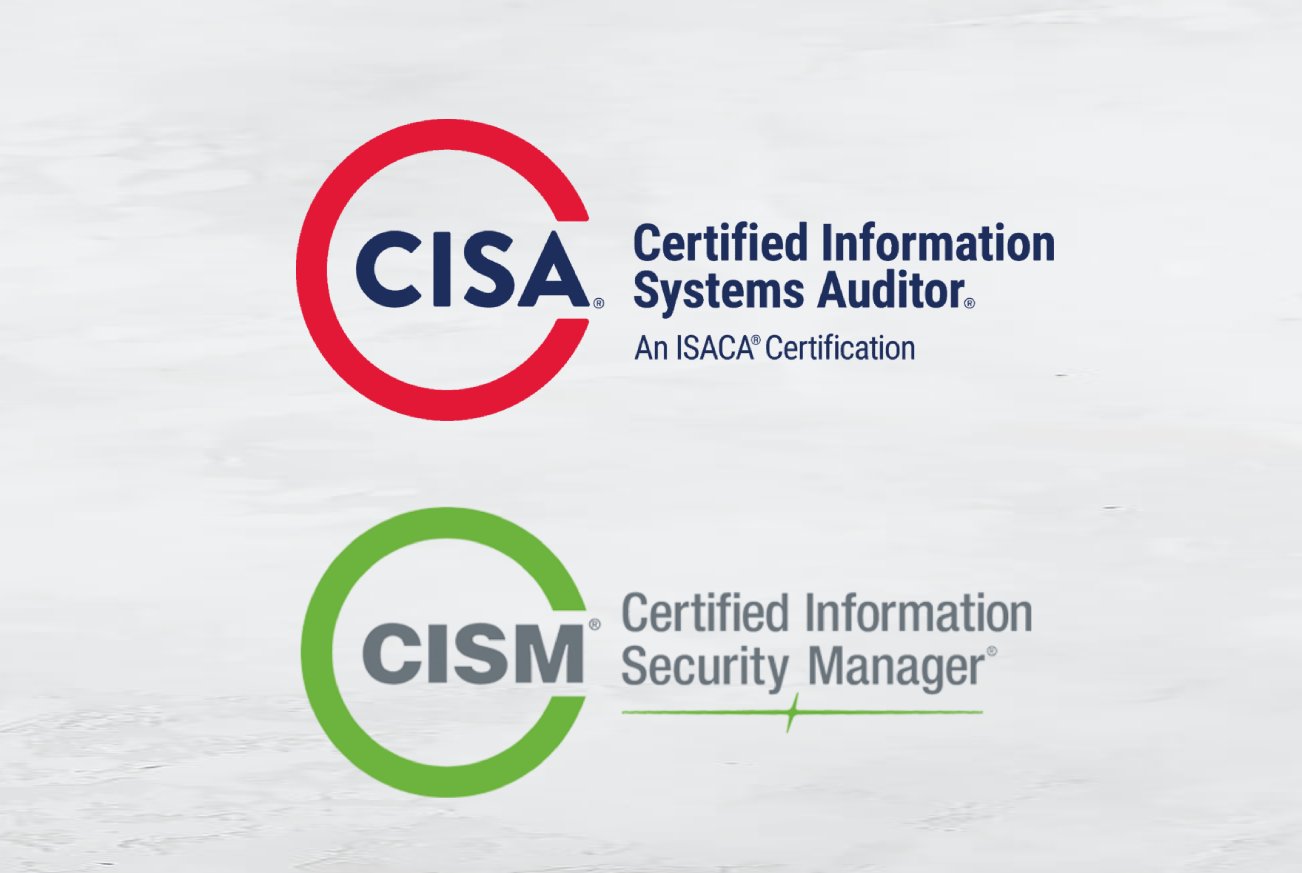
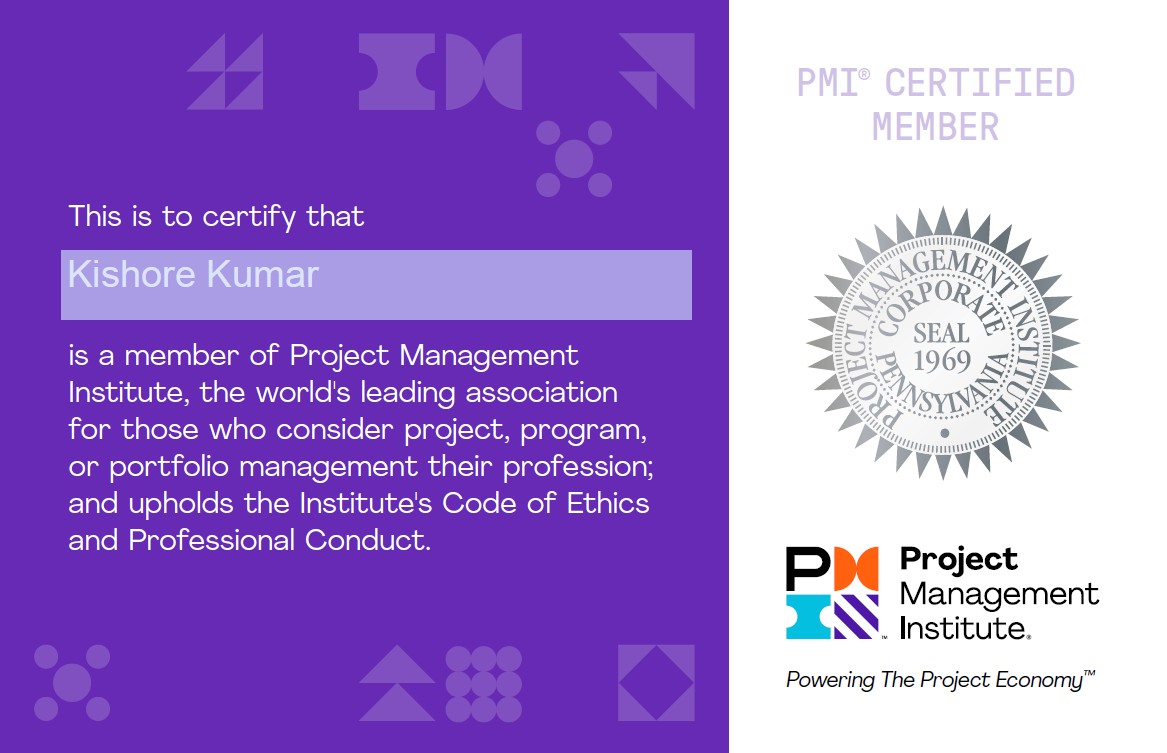
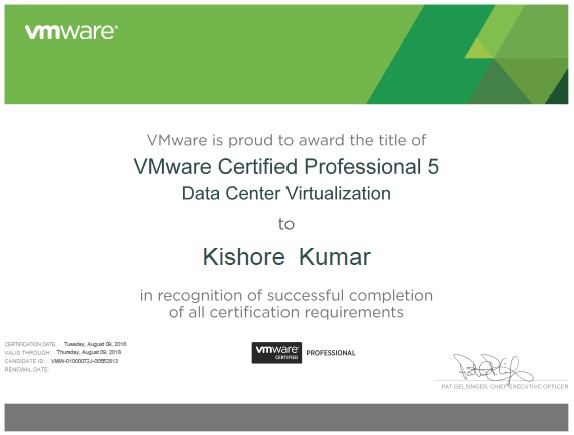
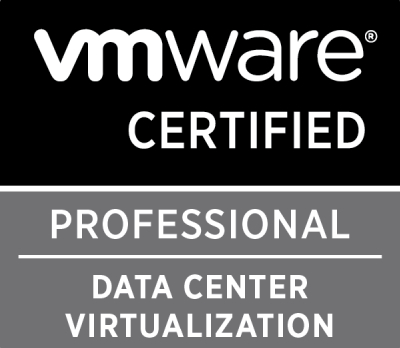
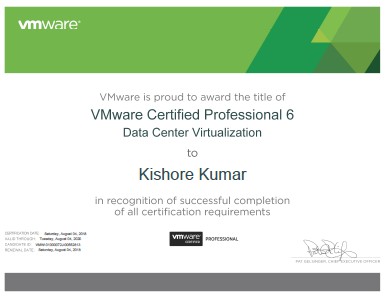
- MCP, VCP, MCSD, JCP, OCP, OCPDBA, PMP, CISA, LA
Technical Skills
- Platforms: Windows Server (2003–2019), Unix, Linux
- Languages: VB.NET, C#, Java, ASP.NET, SQL, HTML/CSS, JavaScript
- DBMS: Oracle, MS SQL Server
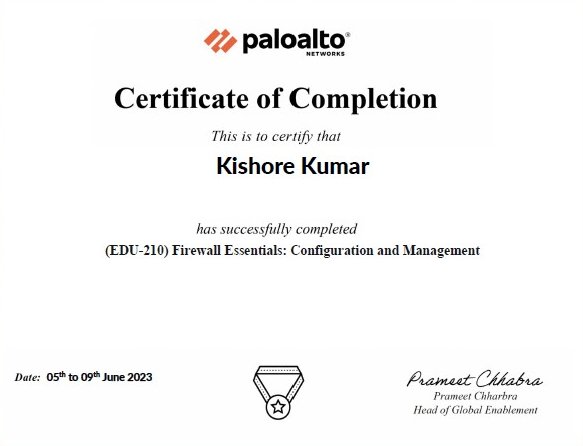
- Tools: Microsoft Azure, SharePoint, Veeam, Zerto, Forcepoint, VMware, WALLIX
- Networking: Active Directory, DNS, DHCP, Exchange, Cisco, Palo Alto, IronPort
- Storage: Dell EqualLogic, Compellent, PureStorage
Awards & Publications
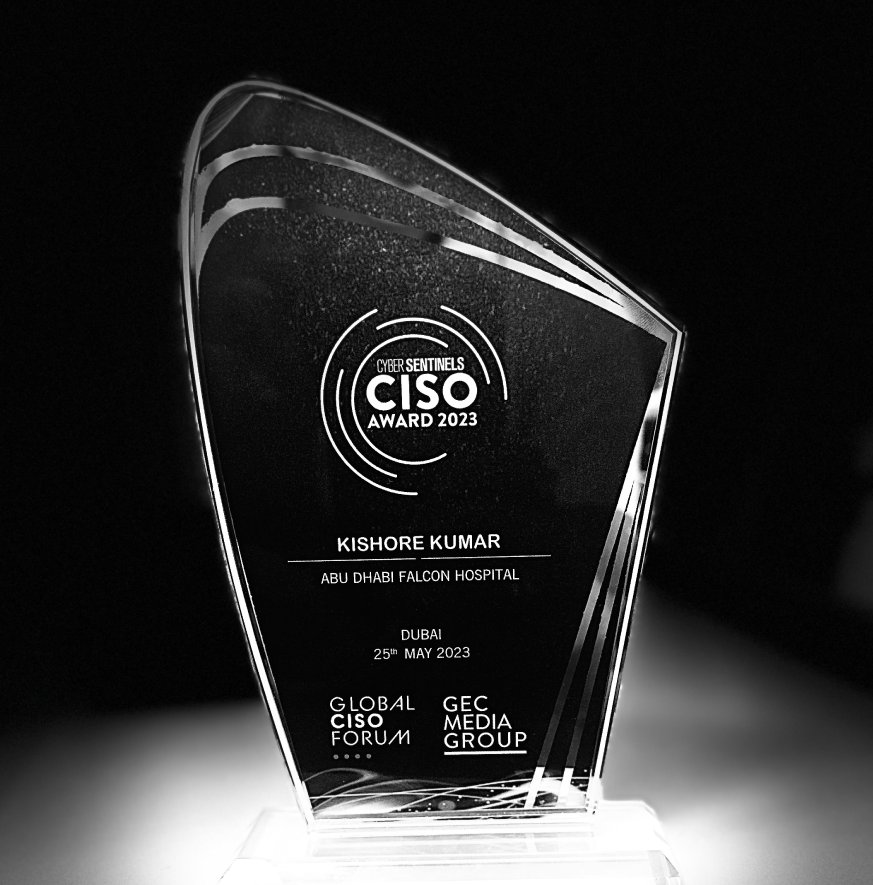
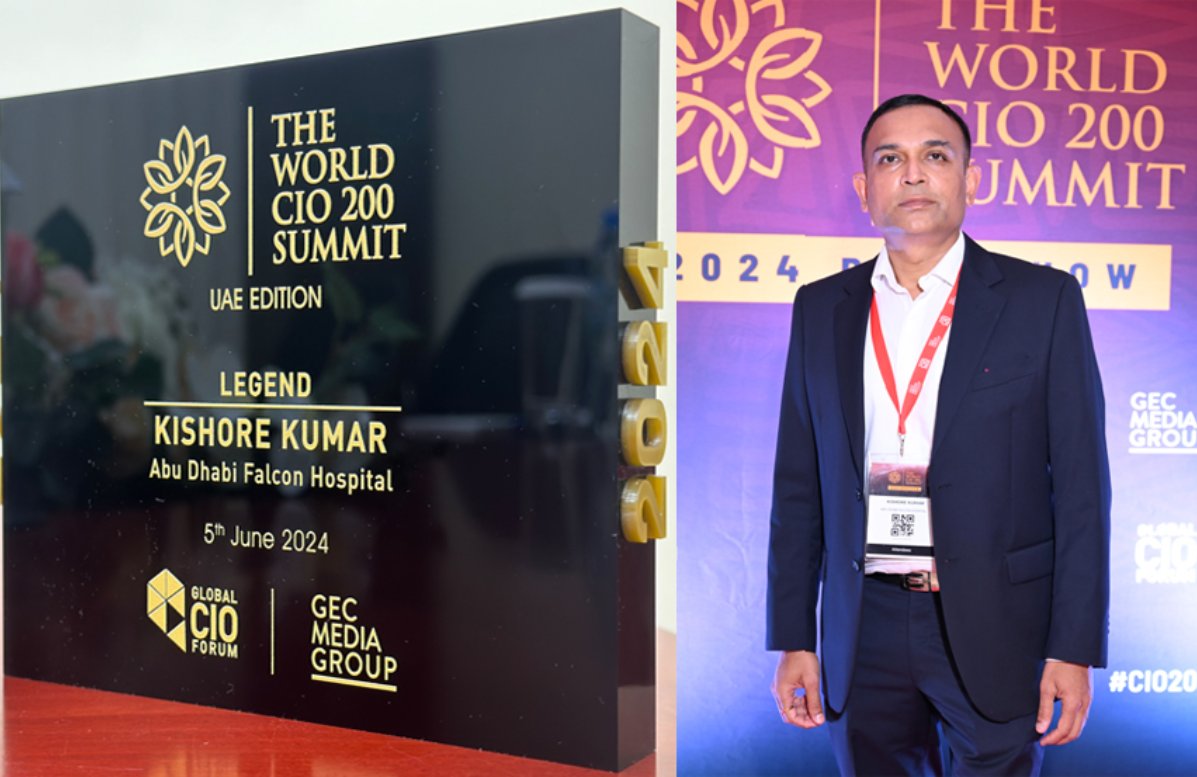
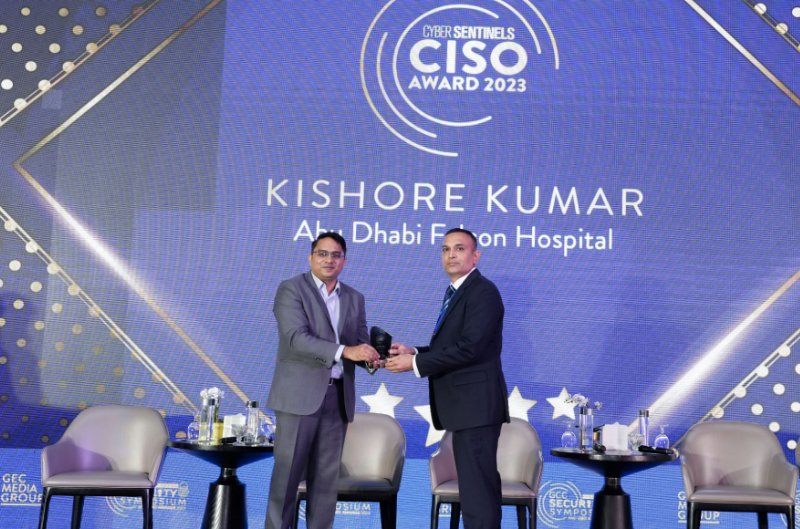
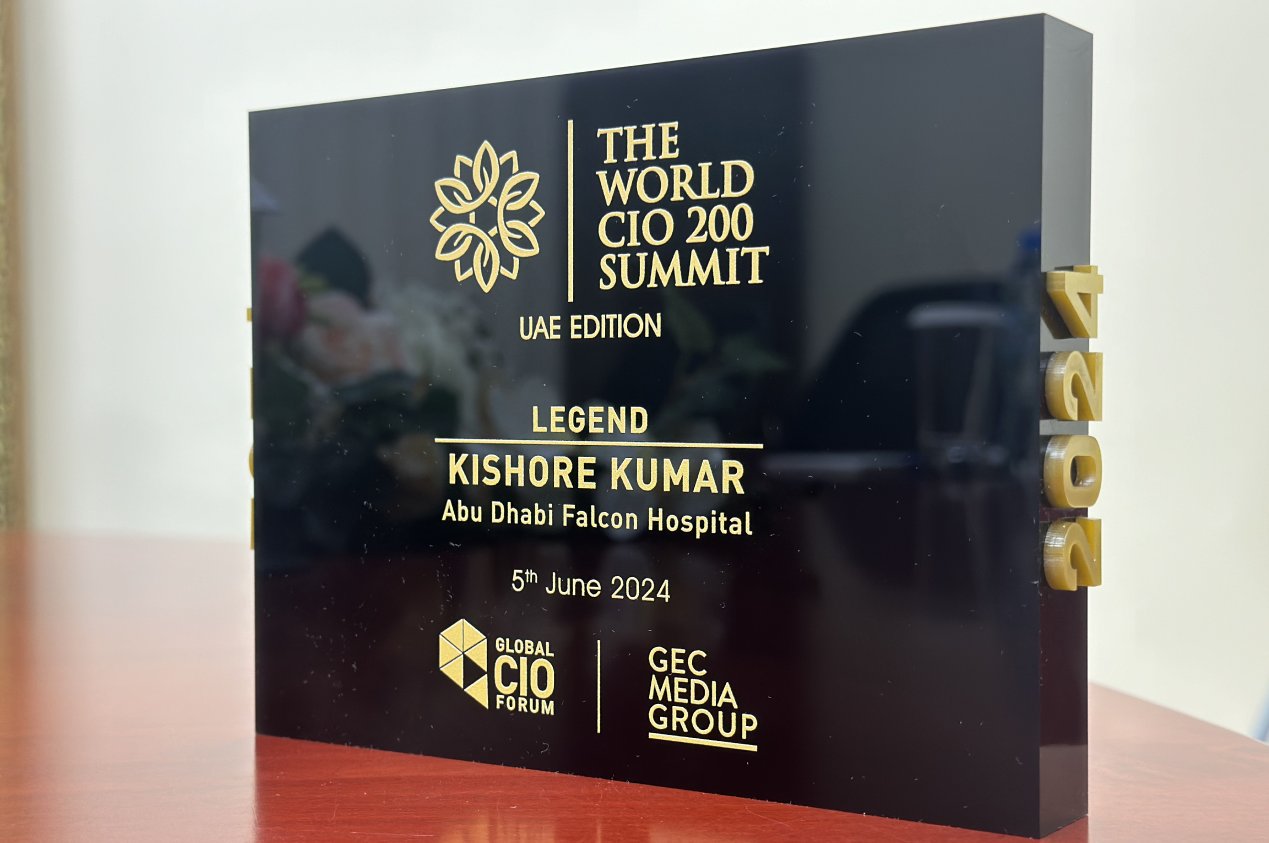
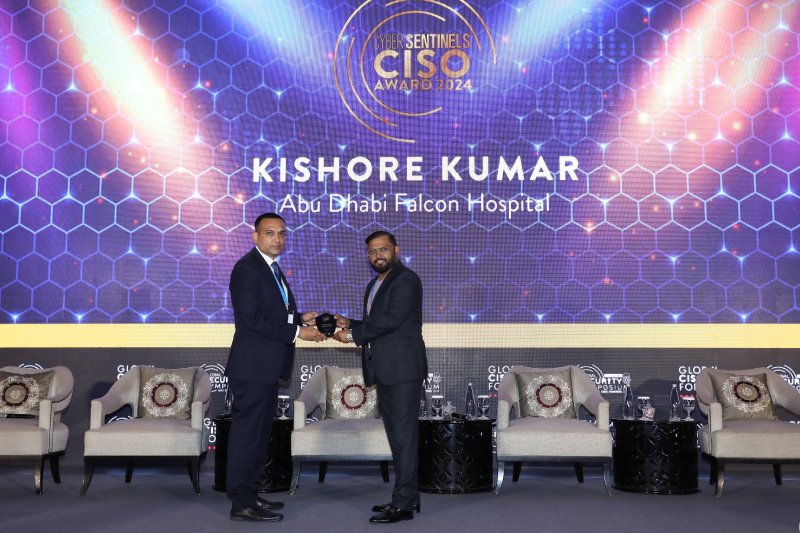
- CISO Award – Cyber Sentinels 2023 & 2024
- Contributor to cybersecurity publications
Portfolio
Magnam dolores commodi suscipit. Necessitatibus eius consequatur ex aliquid fuga eum quidem. Sit sint consectetur velit. Quisquam quos quisquam cupiditate. Et nemo qui impedit suscipit alias ea. Quia fugiat sit in iste officiis commodi quidem hic quas.
Contact
We’d love to hear from you! Whether you have a project in mind, a question, or just want to connect — feel free to reach out using the form below or through any of our contact channels.
Address
Abu Dhabi, UAE
Call Us
(971) 50-8220870
Email Us
ljhakishore@gmail.com